Workspace, members and roles
How workspaces, teams and members fit together, what each role may do, and how to invite and remove people.
A workspace is your company’s home in kanman. It holds your teams, your members, your integrations and your audit log. Most companies need one workspace.
How the pieces fit
| Level | What it is | Example |
|---|---|---|
| Workspace | Your organisation in kanman: members, integrations, billing, audit log | acme |
| Team | One AI team, bound to one tracker project and one or more repositories, with its own policy and budget | payments-team |
| Story | One piece of work, mirrored from your tracker, with acceptance criteria | PAY-142 |
| Run | kanman working on one story, with attempts, gates and an evidence pack | run-7f3k |
The workspace appears in every app URL, for example app.kanman.ai/acme/teams/payments-team.
There is one kanman per workspace. It works in all of your teams and appears next to your members in activity, decisions and the audit log.
Roles
| Role | Can do |
|---|---|
| Owner | Everything an admin can do, plus deleting teams and the workspace. |
| Admin | Create teams, change team policies, budgets and settings, connect integrations, manage members, the provider key, API tokens, webhooks, runners and billing, open and export the audit log. |
| Member | Work in all teams: submit requirements, approve or reject drafted stories, answer decisions, stop and retry runs, pin or retire conventions. Team settings are shown read-only. |
| Viewer | Read-only access. |
Answering decisions is deliberately open to members: the person closest to the work should be able to approve a plan or answer a question. Every answer is recorded in the audit log with the member’s name.
The Audit entry in the navigation is visible to everyone but disabled for members and viewers, with the hint “Only workspace admins can open the audit log”.
Workspace settings
Workspace settings live under Settings (/<workspace>/settings/<tab>), grouped in the sidebar:
| Group | Tab | Path | What you manage |
|---|---|---|---|
| Workspace | General | /settings/general |
Workspace name; the workspace URL is shown and cannot be changed |
| Workspace | Members | /settings/members |
Members and their roles |
| Workspace | Appearance | /settings/appearance |
Workspace look and feel |
| AI and billing | AI providers | /settings/ai |
Your own provider key, see What model providers see |
| AI and billing | Billing | /settings/billing |
Plans per team, invoices, see Plans and billing |
| AI and billing | Runners | /settings/runners |
Where runs execute, self-hosted runners |
| Integrations | Git | /settings/git |
GitHub and GitLab connections |
| Integrations | Slack | /settings/slack |
Slack workspace and team channels |
| Integrations | Webhooks | /settings/webhooks |
Outgoing webhooks |
| Integrations | API | /settings/api |
API tokens |
| Security | Single sign-on | /settings/sso |
Single sign-on |
| Security | Audit retention | /settings/audit |
How long audit entries are kept |
| Advanced | Danger Zone | /settings/advanced |
Deleting the workspace |
All paths start with your workspace, for example app.kanman.ai/acme/settings/members. Press Ctrl+, (Cmd+, on Mac) to search all settings by name.
Inviting members
The person you add needs a kanman account. Ask them to sign up first.
- Open Settings > Members.
- Click Invite member.
- Enter their Email address and choose a Role (Admin, Member or Viewer).
- Click Send invite.
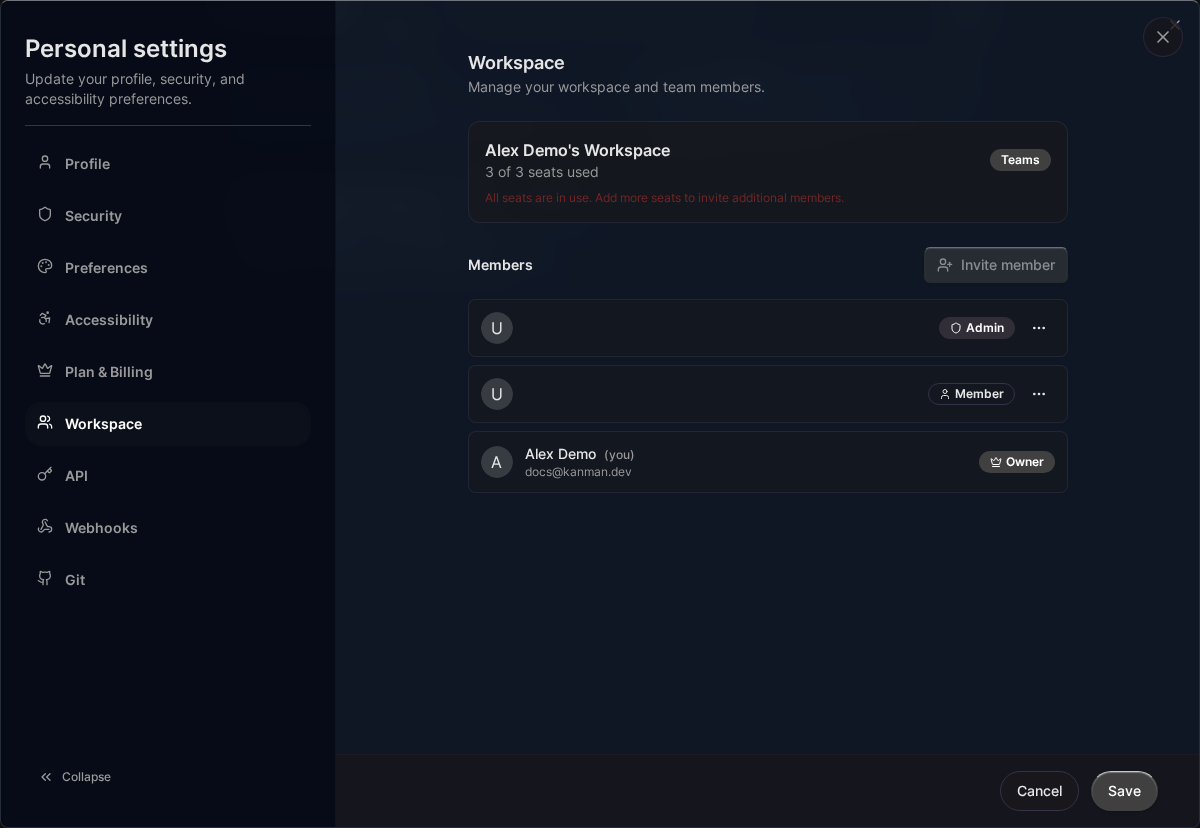
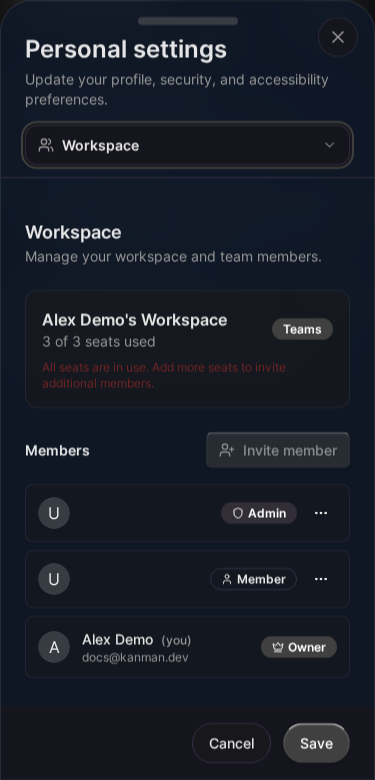
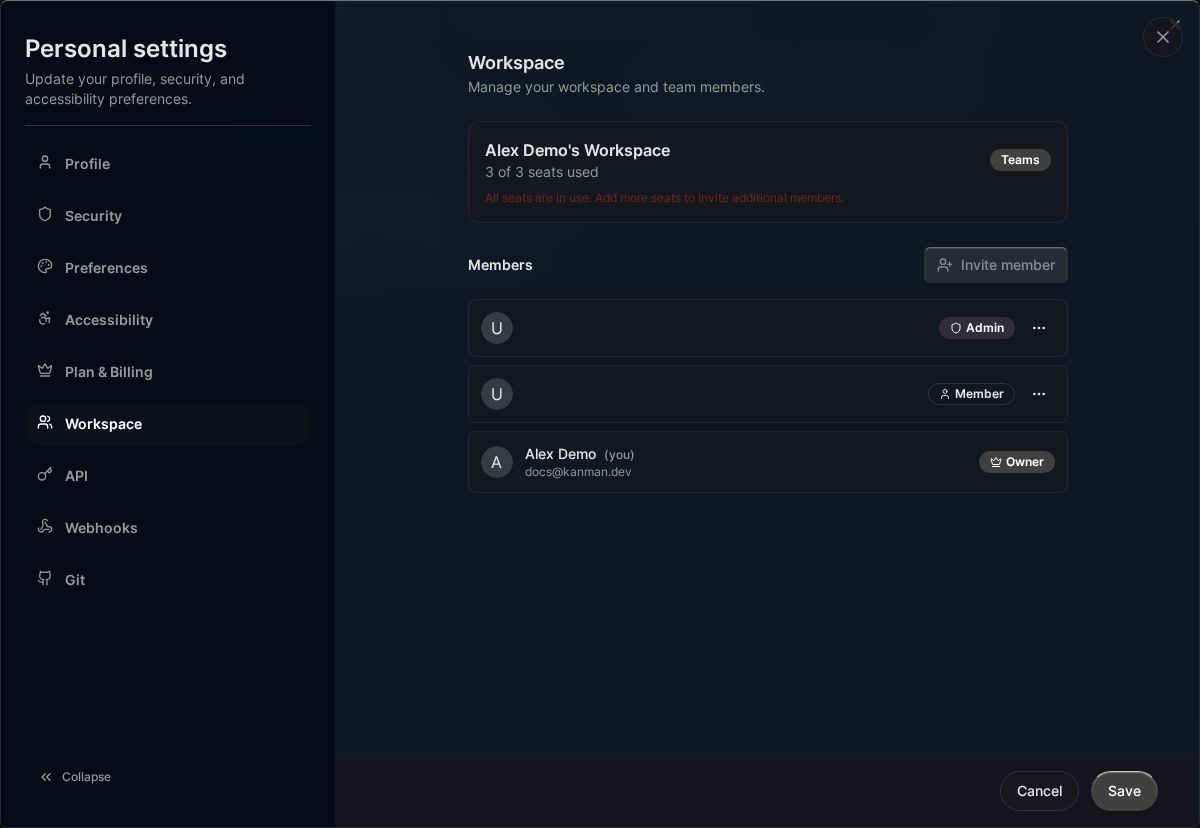
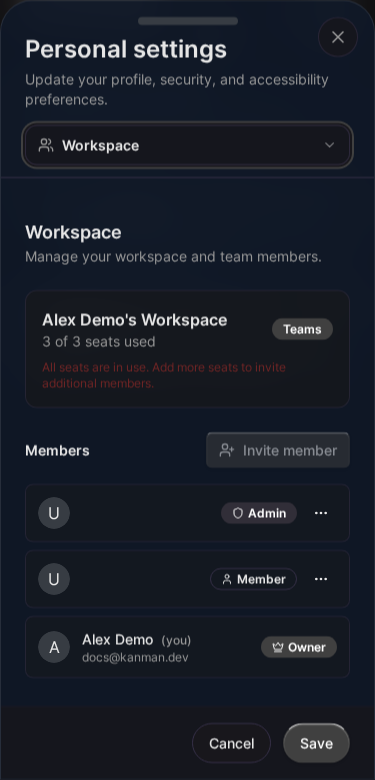
The person is added to the workspace right away and can open every team in it. Members are not billed: kanman is billed per AI team.
Changing a role
- Open Settings > Members.
- Open the menu next to the member.
- Choose Make admin, Make member or Make viewer.
Role changes take effect immediately. The owner’s role cannot be changed here.
Removing a member
- Open Settings > Members.
- Open the menu next to the member and choose Remove from workspace.
- Confirm with Remove.
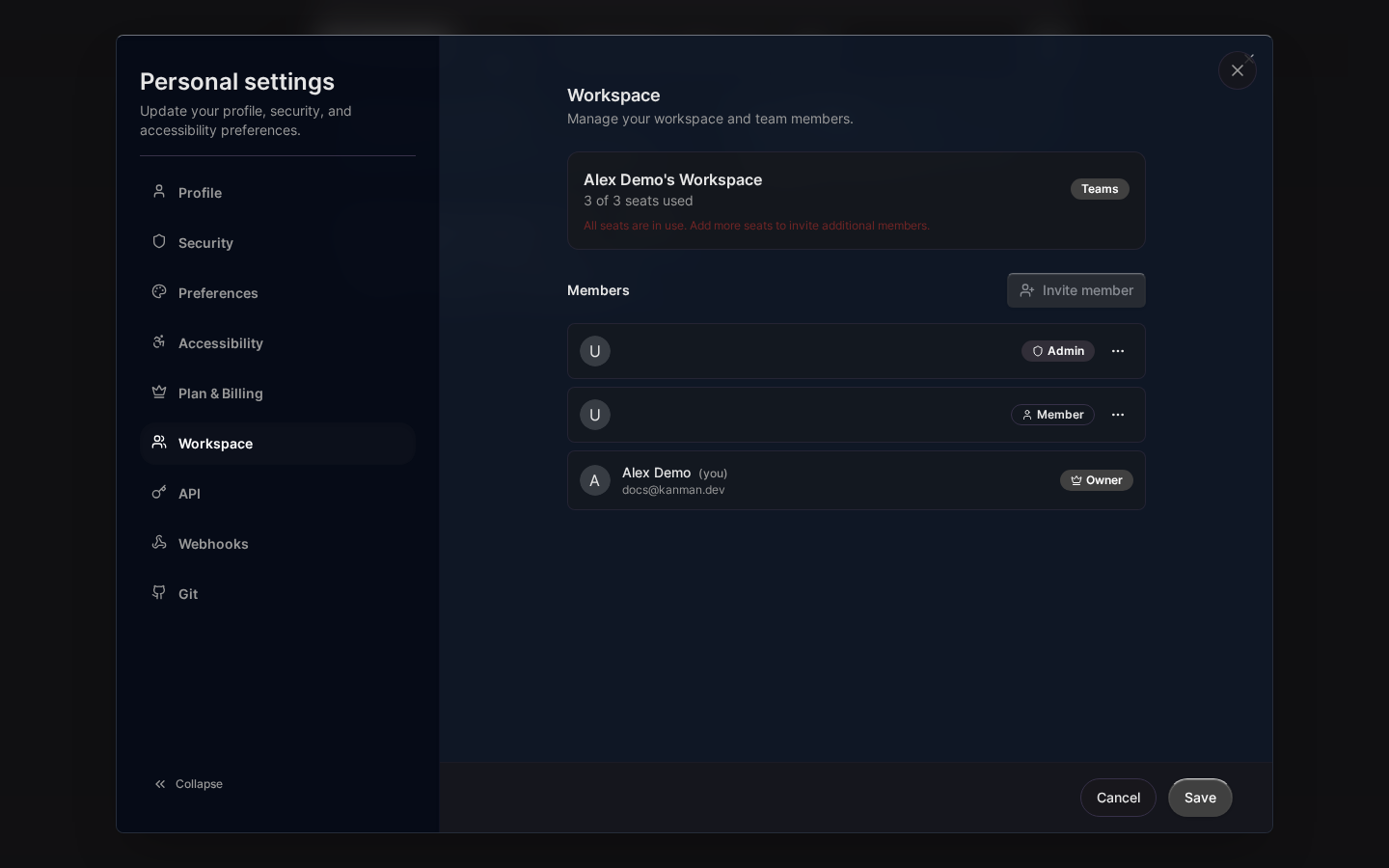
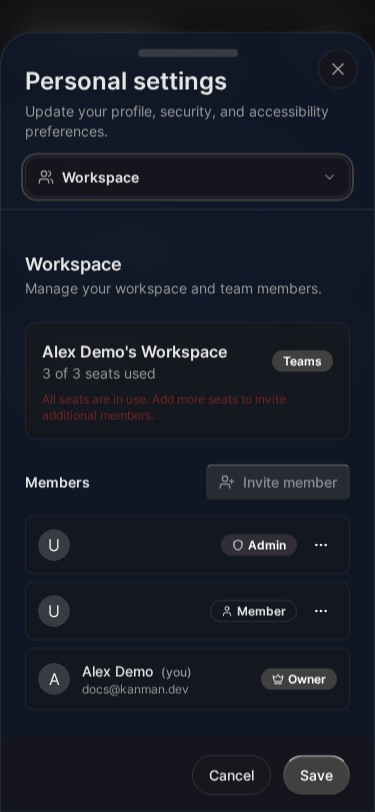
The member loses access immediately. Their past approvals and answers stay in the audit log with their name.
Transferring ownership
Coming in a later release
Transferring ownership in the app. Until then, write to [email protected] from the owner’s email address.
Several workspaces
You can belong to more than one workspace, for example if you are an agency working for several clients. Switch workspaces from the workspace menu in the header. Each workspace has its own teams, integrations, billing and audit log; nothing is shared between them.
Deleting a workspace
Only the owner can delete a workspace:
- Open Settings, Danger Zone (
/<workspace>/settings/advanced). - Click Delete workspace.
- Type the workspace’s name and click Delete workspace.
The app then switches to your next workspace. Admins and members see the Danger Zone without the button.
Caution
Deleting a workspace stops all work in every team, closes open decisions, revokes all API tokens, switches off webhooks and self-hosted runners and erases the stored model provider keys. The workspace disappears for every member. It cannot be undone in the app. Your tracker issues and pull requests are not affected. See Retention and deletion.
Related pages
Last updated: January 1, 0001
Open kanman